
This post is from 2017. The ACME client was renamed and changed a lot since then, so tool names, folder paths and menu options will not be the same as today. The procedure is still the same: use another web server for the challenge, then import the certificate in PRTG.
With letsencrypt-win-simple it’s easy to install Let’s encrypt certificate on IIS or Apache. But because PRTG uses it’s own web server, procedure is quite different.
Prerequisites
- letsencrypt-win-simple – https://github.com/Lone-Coder/letsencrypt-win-simple/releases
- PRTG Certificate Importer – https://www.paessler.com/tools/certificateimporter
- IIS or other web server
letsencrypt-win-simple talks to Let’s encrypt and creates the certificate files. PRTG Certificate Importer is a Paessler tool which puts those files where PRTG expects them and restarts the service. Web server is needed only for a few seconds, while Let’s encrypt checks that you own the domain.
At first, download letsencrypt-win-simple and PRTG Certificate Importer and unpack letsencrypt-win-simple .zip archive to some folder (e.g. to C:\letsencrypt-win-simple).
Why PRTG needs a second web server
Let’s encrypt must check that you own the domain. It creates a random token and then tries to download it from http://<your-host>/.well-known/acme-challenge/<token>. Whatever web server answers on port 80 for that hostname must serve that file. If it can’t, you don’t get the certificate.
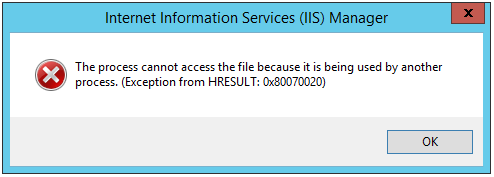
Because PRTG web server doesn’t allow hosting any custom pages, you need to setup a different web server on the same domain on port 80. At first, create a website in IIS with same domain name as your PRTG server uses (e.g. prtg.mata.com.hr), and point to some folder (e.g. C:\inetpub\wwwroot). Location of this folder is irrelevant, you don’t need to point to PRTG webroot folder. If you start IIS site now, you’ll probably get this error:
Free port 80 for the challenge
Two web servers can’t listen on the same port, and PRTG is already there.
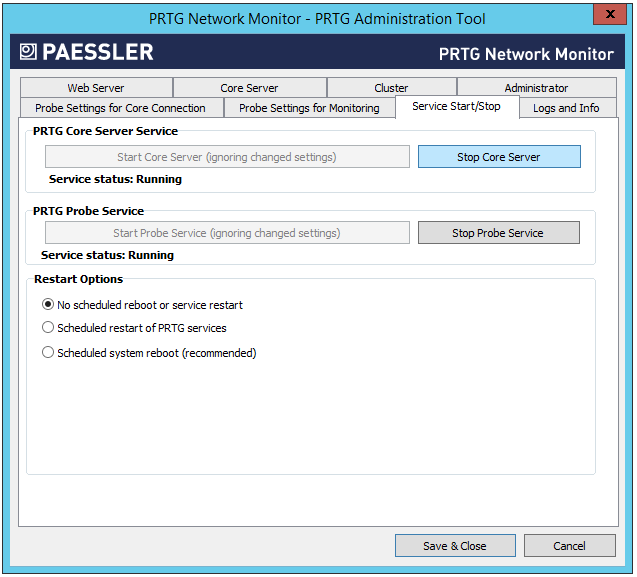
Even if your PRTG is configured for HTTPS and listen on port 443, it also listens on port 80 by default (hint: knowledge base). So stop the Core Server by click on Stop Core Server in Service Start/Stop tab in PRTG Administration Tool.
Go to Web Server tab and choose Secure HTTPS Server option. Click Save & Close.
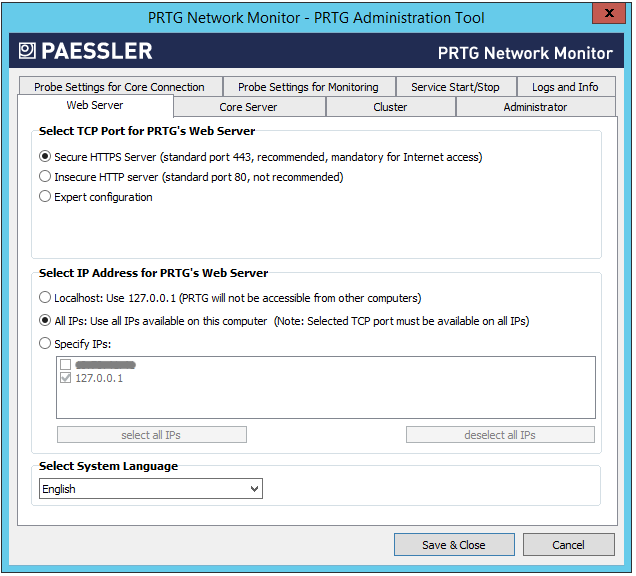
This setting makes PRTG use the certificate after you import it. It doesn’t turn off the port 80 listener, that’s a separate thing and I write about it at the end of this post.
Request the certificate
Then start the IIS site and be sure it can be accessed from Internet. Now start letsencrypt.exe.
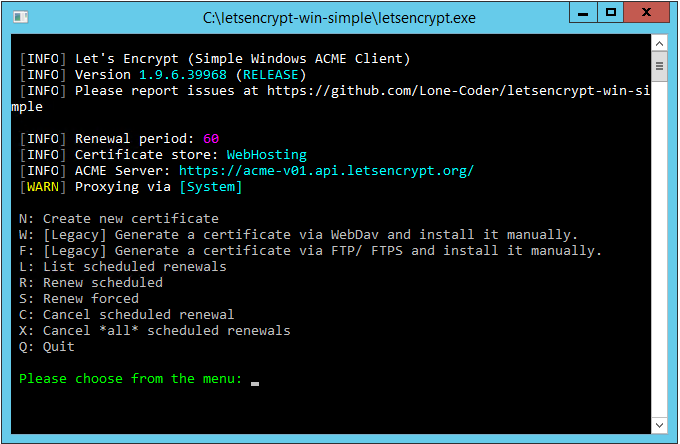
Choose N: Create new certificate, and then 4: Manually input host names. Enter desired hostnames (e.g. prtg.mata.com.hr), then location to your web site root folder (e.g. C:\inetpub\wwwroot) and press Enter. Letsencrypt.exe will create file in .well-known\acme-challenge\<some_random_hash>. Be sure you can access it from the Internet by opening it in your browser: (e.g. prtg.mata.com.hr/.well-known/acme-challenge/<some_random_hash>). By default, IIS doesn’t know how to open files without extension, so add this MIME Type in your site in IIS:
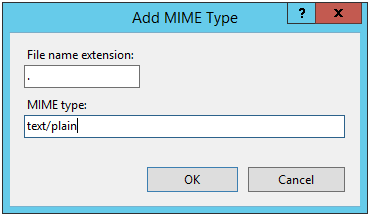
The challenge file is named by the token and has no extension, and that’s exactly what IIS doesn’t serve by default. Without this MIME Type you get 404, and for Let’s encrypt a 404 means you don’t own the domain.
If letsencrypt can reach the file, it will create certificate and put it in the C:\ProgramData\letsencrypt-win-simple\httpsacme-v01.api.letsencrypt.org folder. You should find this three files which represents certificate:
<domain_name>-crt.der <domain_name>-crt.pem <domain_name>-key.pem
There will be also <domain_name>-all.pfx which is easiest to import in Windows.
Import the certificate into PRTG
IIS was needed only for the challenge, so now you can give the ports back to PRTG.
Now you can stop IIS site and start PRTG Server by clicking on Start Core Server in Service Start/Stop tab in PRTG Administration Tool.
Then open PRTGCertImporter.exe.
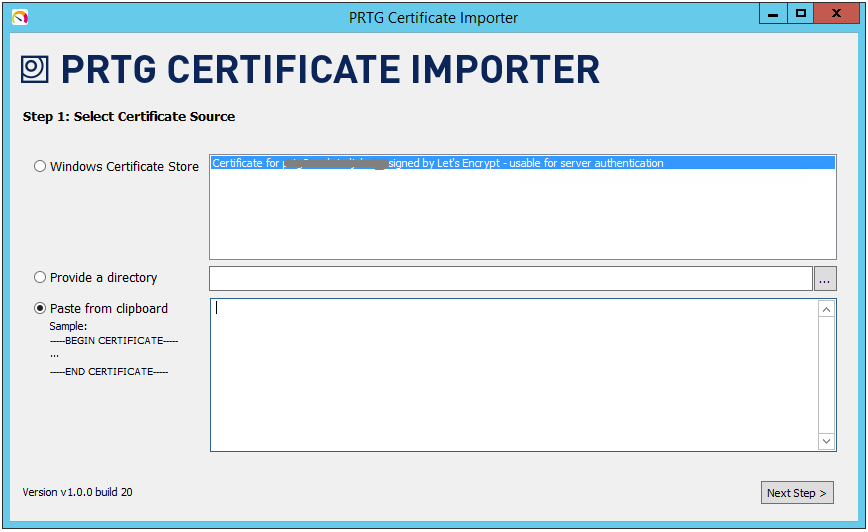
If you have imported .pfx you can pick certificate from Windows Certificate Store or paste certificate from <domain_name>-crt.pem file. Click Next Step and paste Private key from <domain_name>-key.pem.
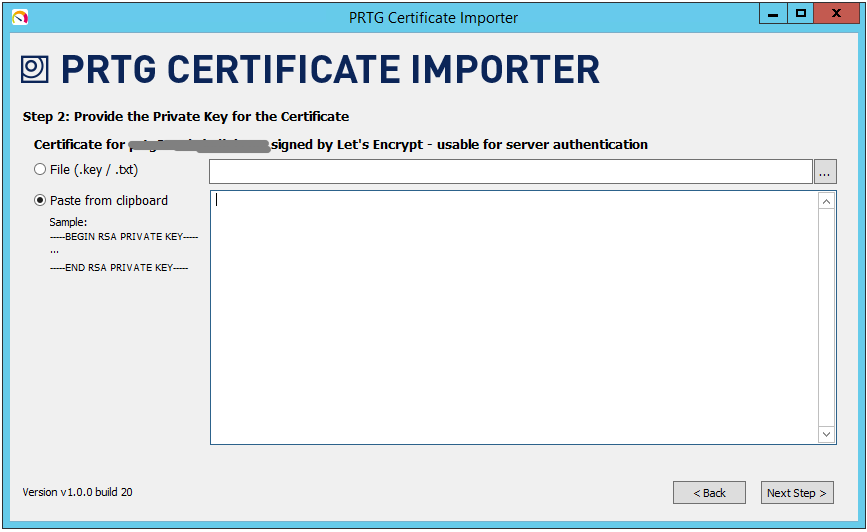
Click Next Step. You should see this:
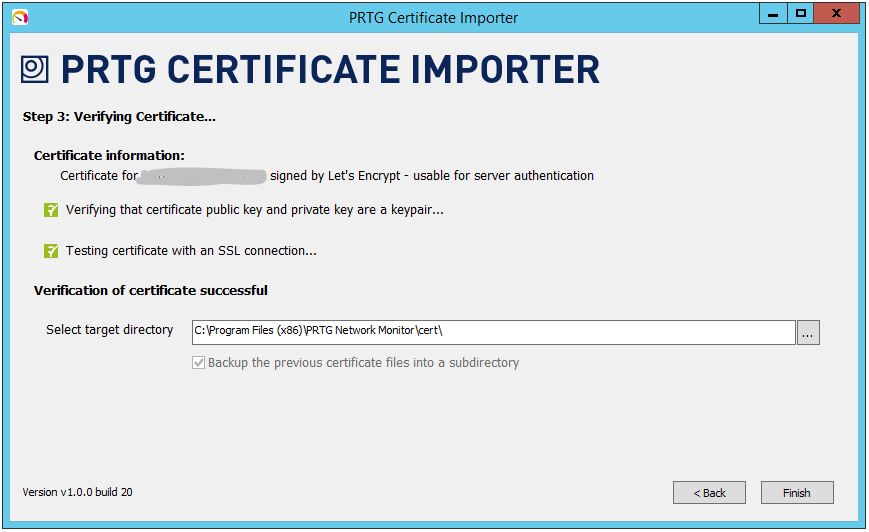
Now click Finish and confirm to restart PRTG Server. Wait until PRTG Server restarts and that’s it. Let’s encrypt certificate for PRTG Server is installed.
Verify it worked
Open https://prtg.mata.com.hr in a browser and check the certificate in the padlock. Three things must be correct: issuer is Let’s encrypt and not Paessler, common name is the same hostname you entered in letsencrypt.exe, and certificate is valid for about 90 days.
If browser still shows a warning, there are usually two reasons: PRTG service didn’t finish the restart, or certificate and private key are not from the same run of letsencrypt.exe. Restart the Core Server again and check the files before you blame the certificate.
Before end
By default, letsencrypt.exe will create task in Task Scheduler to autorenew certificate. Although it’s a useful option, it will not work as well. Remember, we stop the IIS server, so letsencrypt can’t access hash in .well-known/acme-challenge/ folder. On the other side, you have to manually import certificate in PRTG. Option is to turn off PRTG listener on port 80 (hint: knowledge base), but then PRTG will be available only with https:// in URL.